



How It Works
The Model
Before you open the dashboard, it helps to understand what CHRONOS is actually managing. These concepts build on each other — read them in order.
Generation
A Generation is the core unit in CHRONOS. It is a named state — a snapshot of a specific set of values at a specific moment. Think of it as a named preset that knows about every parameter you’ve told CHRONOS to track.
Two types exist:
Linked Generation — sparse override. The Generation starts empty at creation. It only stores values you explicitly change. Everything else is resolved live from its parent at read time. This is how you build a branch — a chain of Generations each inheriting from the last, overriding only what they need.
Baked Generation — full snapshot. At creation, CHRONOS walks the entire parent chain from the selected parent up to the nearest root, resolves every Variable’s current value, and writes the complete state into the new Generation permanently. From that point it is sealed. No parent change can reach it. This is how you create a sub-branch that is completely independent from the rest of the tree — a lineage firewall.
There is also a third special type:
Blueprint — the immutable root Generation. Every Context is created with exactly one Blueprint, auto-generated on activation. It acts as a global source of truth. You can add Variables to the Blueprint with default values, but you cannot change those values after. If you add a Variable to the Blueprint of Context A, all other Contexts receive that Variable as well. Nothing in CHRONOS can modify a Blueprint’s values at runtime.
Variable
A Variable is a single tracked parameter — a number, colour, vector, boolean, string, or object reference.
When you create a Variable via the Registry, it is registered globally — regardless of which Generation you are currently on. Two things happen simultaneously: the Variable is added to the global registry (making it visible to every Generation in every Context), and a copy is written to the branch root — the nearest Blueprint or Baked Generation in the current lineage. The result is that every Generation in the Context can see and override it from that point forward.
Variables are organised into groups in the Registry panel. You cannot add a Variable to a Branch — you add it to the registry, and CHRONOS places it on the branch root automatically.
Branch
A Branch is a semantic grouping of Generations that continuously inherit from one another — a lineage. It begins at a branch root (a Blueprint or a Baked Generation) and extends through every Linked child below it. The branch root is the point where inheritance starts; every Generation above it in the tree is part of that branch’s lineage.
Branches are not scene-system containers. They are not defined by what they track — they are defined by their shape: a root and all the Generations that trace back to it. One Context can contain multiple branches if it has multiple Baked roots.
Blueprint (revisited)
Every Context has one Blueprint — the immutable root that every Generation in that Context traces back to. It is not a Generation you create; it is created automatically when the Context is initialised. Every Branch tree in a Context is anchored to the Blueprint.
A Baked Generation can also serve as a branch root — creating a completely independent sub-tree within the same Context. This is the current way to create multiple parallel variation systems in a single scene (see the Branching page for topology examples).
Context
A Context in CHRONOS maps directly to a Take in Cinema 4D. The Main Context corresponds to the Main Take — this is the root of the entire tree. Every other Context is a child of the Main Context, just as every Take in C4D can be a child of the Main Take.
When you switch Takes in Cinema 4D, CHRONOS switches with it — reading from and writing to whichever Context is active.
Inheritance between Contexts: A child Context inherits from its parent Context. Specifically, it inherits from the parent’s current active position — the currently selected Generation in the parent — up to the nearest Baked Generation or Blueprint in the parent tree. This means the child Context’s tree is always evaluated relative to where the parent Context currently sits. CHRONOS calls this the active position — the current Generation selected in any given Context.
V1 limitation: Due to Cinema 4D’s architecture, CHRONOS currently supports only one root Context (the Main Take). All other Contexts are children of that root. Full multi-root support arrives in V3 with the standalone dashboard. In the meantime, Baked Generations on the Main Context serve as independent sub-branch roots — see the Branching page for how to use this effectively.
Each Context has its own full Branch and Generation tree. The V1 constraint is two levels of Context depth (Main + one level of children). This dissolves in V3.
The Dashboard
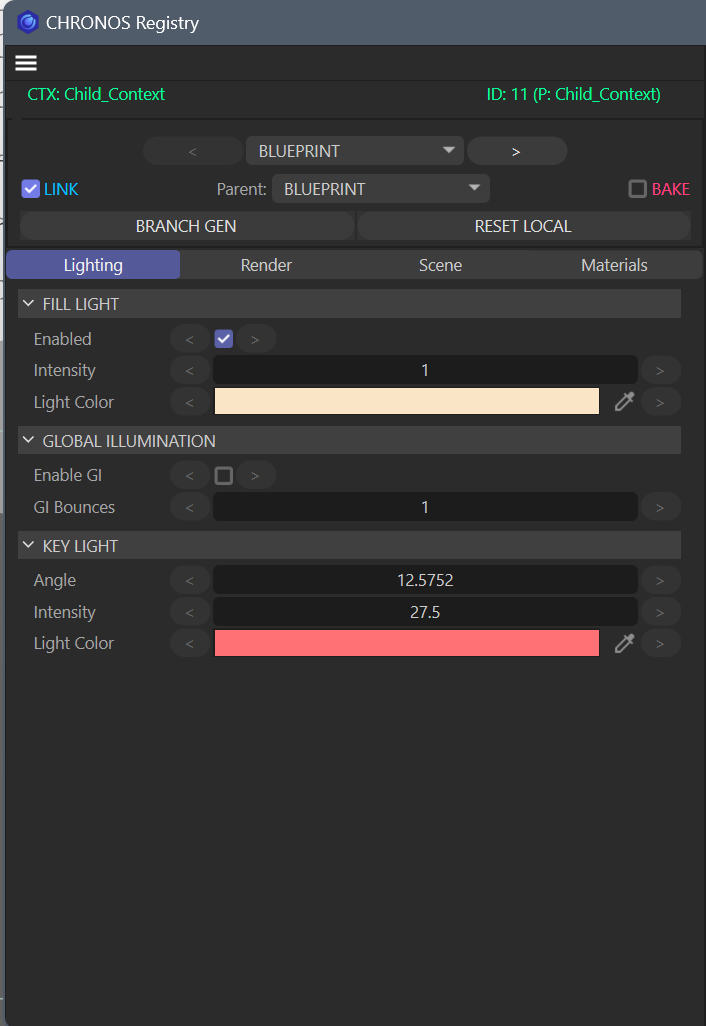 The Blueprint selected — the immutable root Generation, auto-created per Context. Every Variable holds its default value. LINK/BAKE controls are inactive — the Blueprint cannot be reparented or sealed.
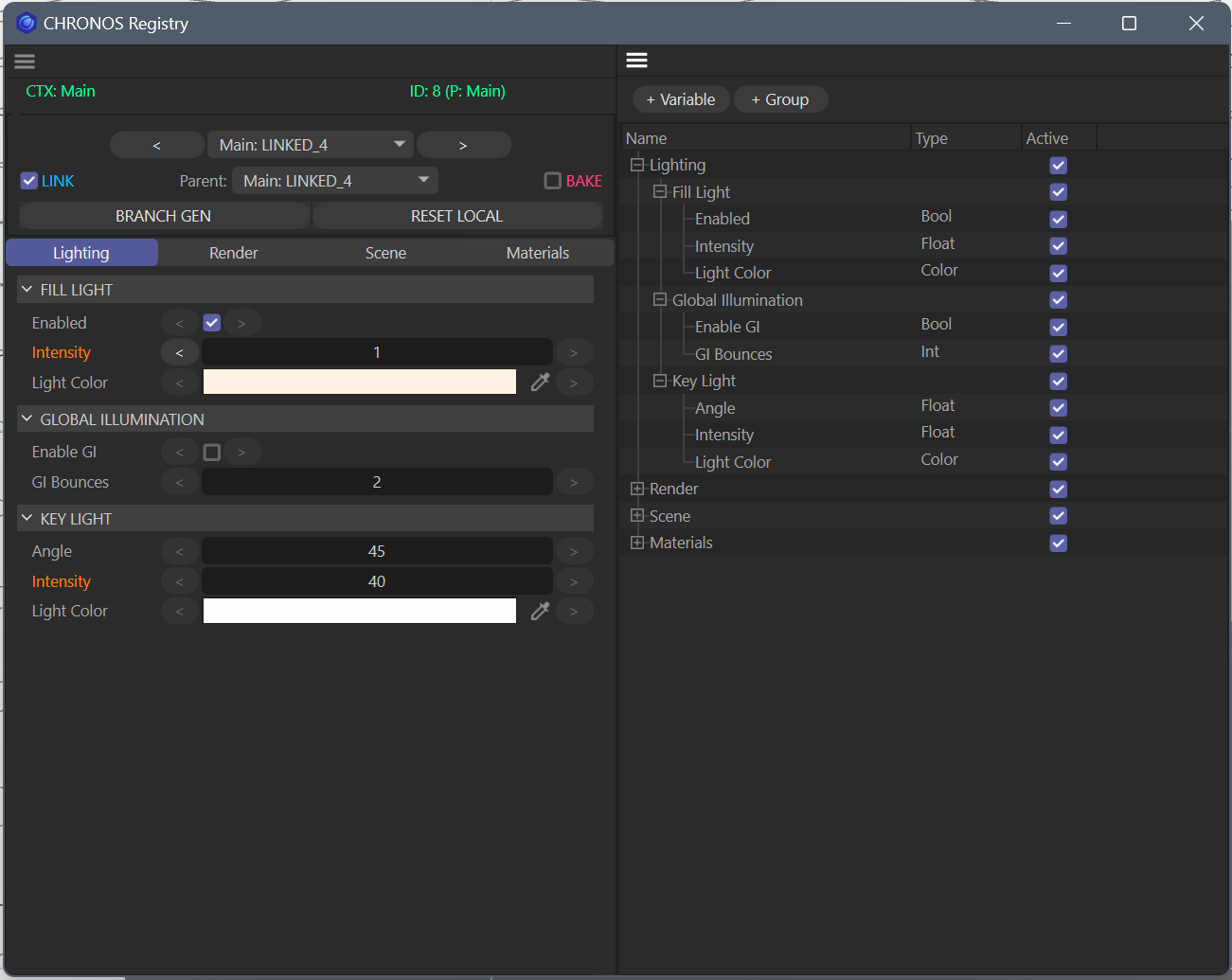 Dashboard (left) alongside the Registry (right) — Lighting branch expanded with Fill Light, Global Illumination and Key Light groups.
The CHRONOS Dashboard is a dockable panel inside Cinema 4D. Open it from Plugins → CHRONOS → Open Dashboard. Pin it to a second monitor, dock it to the side — it lives wherever you work best.
The dashboard is the control surface for everything above. It shows:
- The active Context and its current active Generation
- The full Generation tree — Blueprint at the root, all Linked and Baked children below it
- The active Generation’s Variable values, with overrides highlighted
- Controls to create, delete, Link, and Bake Generations
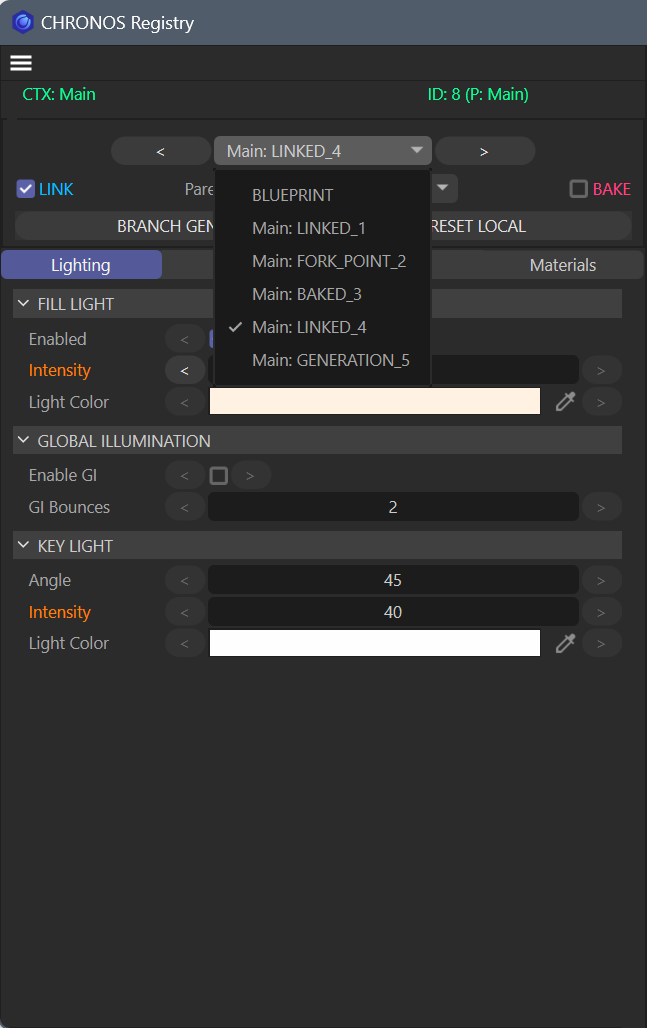 The Generation picker — BLUEPRINT at the root, followed by Linked, Baked, and Fork Point Generations. The active Generation is marked with a checkmark. Orange labels indicate locally overridden Variables.
Everything in the dashboard reflects the active Take. Switch Takes in Cinema 4D — the dashboard updates immediately.
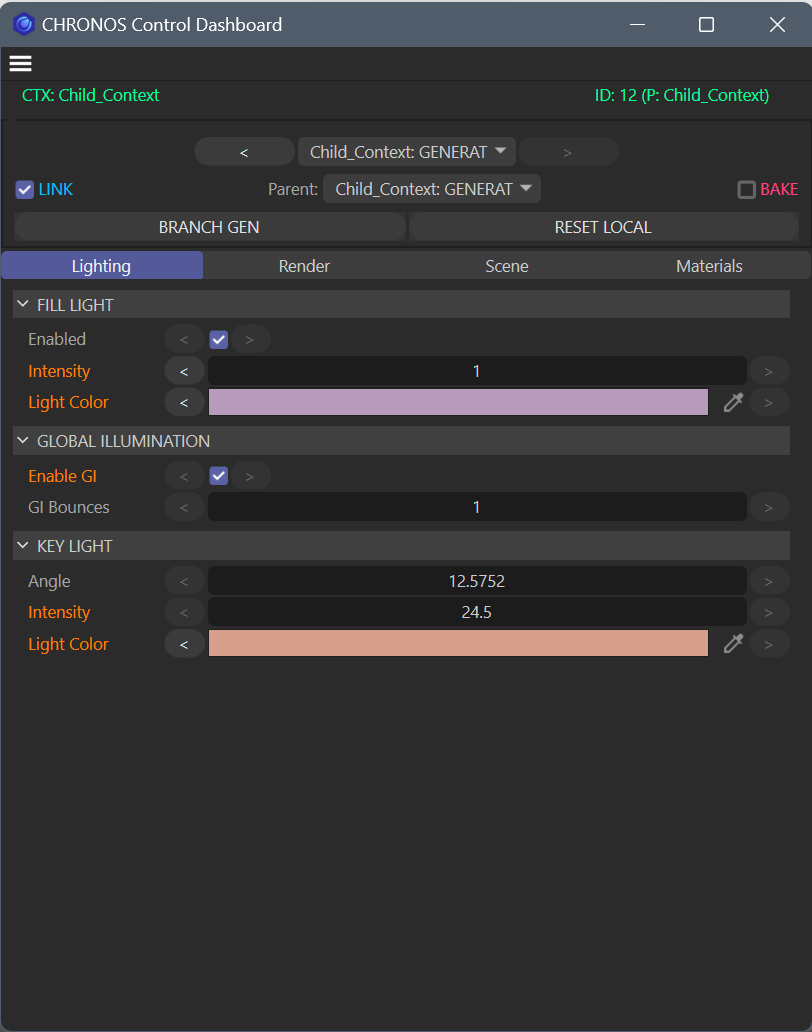 A Linked Generation in a Child Context — LINK checked, Parent set. Orange Variable names indicate local overrides; plain names are inherited live from the parent.
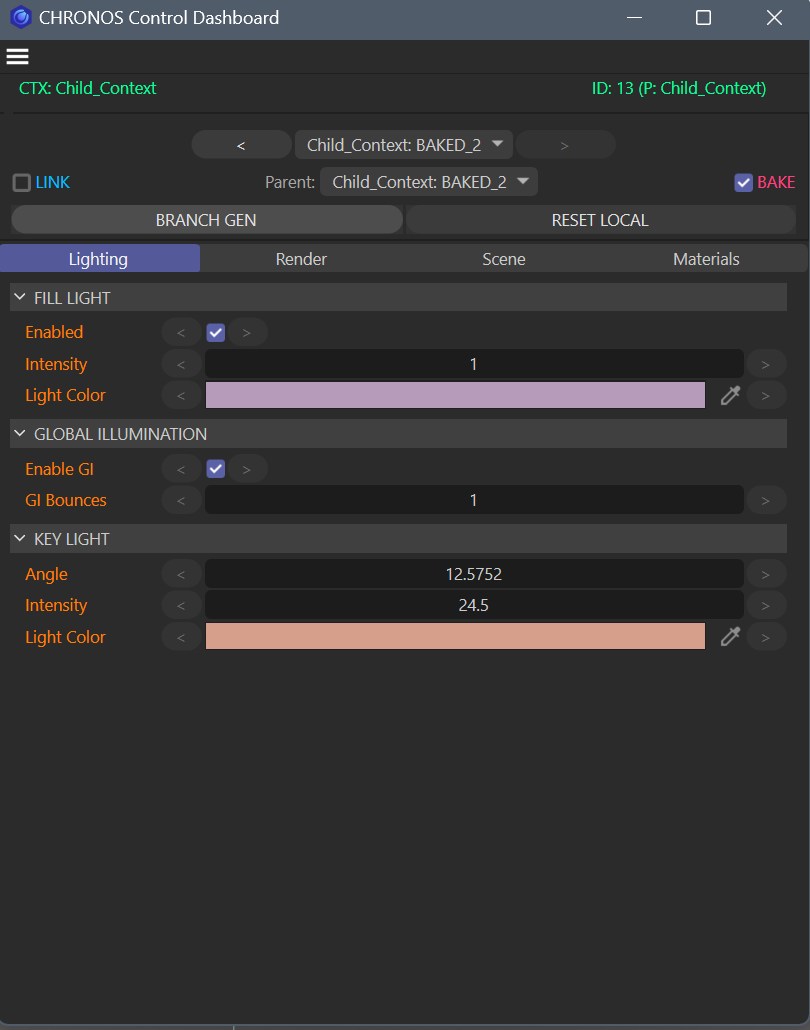 A Baked Generation — BAKE checked, LINK unchecked. Every Variable holds an explicit baked-in value. No parent change can reach this Generation.
The Registry
The Registry is a separate panel where you define what CHRONOS tracks. This is where you create Branches and add Variables to them.
To add a Variable: open the Registry, select or create a Branch, add a Variable and give it a name and type. Every Variable is added to the root of its Branch and to the Blueprint simultaneously — Variable addition is global. That Variable is immediately available in every Generation of every Context. This is by design: Variables are a global contract across the entire project, not local to a single Generation or Context.
Supported Variable types: Number (integer or float), Colour, Vector, Boolean, String, Object reference.
The Registry is intentional by design. CHRONOS does not auto-capture your scene. You register exactly the parameters you want to manage — no more. This keeps the system fast, predictable, and under your control regardless of scene complexity.
The Workflow in 4 Steps
Step 1 — Activate
Open the dashboard from Plugins → CHRONOS → Open Dashboard. Click Activate. CHRONOS connects to your active .c4d file, reads the active Take as the Main Context, and auto-generates the Blueprint. You are live. No configuration files, no wizards — 10 seconds from open to running.
Step 2 — Register Variables
Open the Registry panel. Create a Branch — name it after the scene system you want to track (Key_Light, Materials, Camera). Add Variables to it: give each one a name and a type.
Add as many Branches and Variables as your project needs. They are registered globally — every Generation you create can see and override them.
Step 3 — Create Generations
Create a Generation from the Blueprint. Choose Link to inherit live from the Blueprint, or Bake to capture a frozen snapshot of the current state.
Give it a name at creation — names are set once and cannot be changed in V1. Set the values you want different — override only what changes. Everything else is inherited. The scene updates live as you adjust values.
Create as many Generations as you need. Add child Generations to existing ones — Link to stay live, Bake to seal.
Step 4 — Switch and Iterate
Click any Generation in the dashboard. CHRONOS resolves the full value chain — walking up the parent tree, collecting every Variable’s current value — and applies it to the scene in one clean pass. No partial states. No undo required. Click a different Generation and you’re back.
Change a value on a parent Generation. Every Linked child that hasn’t overridden that Variable reflects the change automatically. Baked Generations are unaffected — they are sealed.
Key Concepts
| Concept | What It Is |
|---|---|
| Generation | A named variation state — stores only what it overrides, inherits the rest |
| Linked Generation | Sparse override — inherits live from parent, stores only local changes |
| Baked Generation | Full snapshot — sealed at creation, immune to parent changes |
| Blueprint | Immutable root Generation per Context — auto-created, never editable at runtime |
| Variable | A single tracked parameter with a name and type |
| Branch | A lineage — a branch root and all Generations that continuously inherit from it |
| Context | The active Cinema 4D Take — CHRONOS reads and writes to the active Context |
| Active Position | The currently selected Generation in a Context — what child Contexts inherit from |